
Ultimate WiFi Power Boost: Master the Range Extender EAX80 Setup for Exceptional Performance
Posted by WifiExtSetup on 17th June 2025
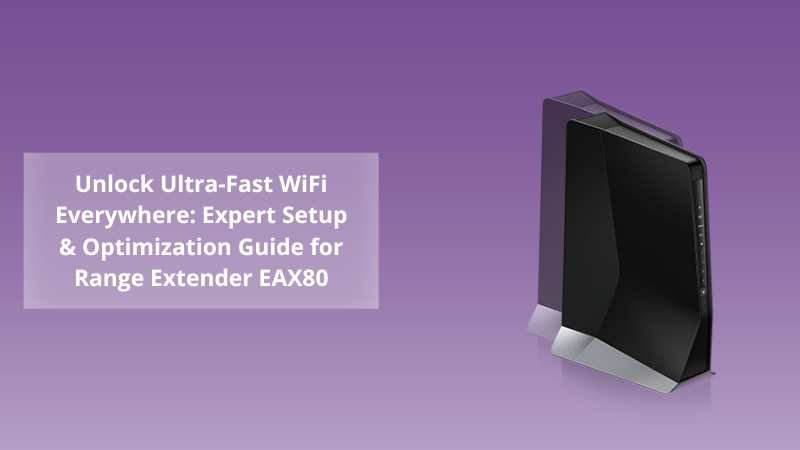
Is your WiFi lagging just when you need it most—during Zoom meetings, 4K streaming, or intense online gaming? Does your signal mysteriously vanish in certain rooms, making you pace around like you’re hunting ghosts with your phone? If this sounds like your everyday battle with the internet, you’re not alone.
So how do you reclaim your bandwidth and take control of your connectivity? One word: Range Extender EAX80.
This powerhouse of a device is designed to blanket your space with uninterrupted, high-speed WiFi. But just owning a premium extender isn’t enough—you need to set it up the right way and know how to optimize it for top-tier performance. Let’s dive in.
Why the Range Extender EAX80 is a Game-Changer
Not all range extenders are created equal. The EAX80 stands out because it delivers the power of a WiFi 6 mesh system, without replacing your existing router.
Top Features at a Glance:
-
WiFi 6 Technology (802.11ax): Delivers 4x more capacity and speed
-
AX6000 Speed Support: Ideal for large households or offices
-
8-Stream Transmission: Perfect for simultaneous HD streaming and gaming
-
Smart Roaming with Mesh Support: Seamless transition between router and extender
-
Quad-Core Processor: For ultra-low latency
-
Four Gigabit Ethernet Ports: Secure wired connections for PCs and consoles
-
Universal Compatibility: Works with any WiFi router
“Think of the EAX80 as your WiFi’s personal trainer—stronger, faster, and smarter.”
How to Set Up Your Range Extender EAX80 (2 Methods)
Let’s break it down into simple steps. There are two ways to set up the EAX80—choose the one that suits your style.
1. Easy WPS Method (Fastest Setup)
If your router supports WPS, this is a 2-minute solution.
Steps:
-
Plug in your EAX80 near your existing router.
-
Wait for the Power LED to turn solid white.
-
Press the WPS button on your router.
-
Within two minutes, press the WPS button on the EAX80.
-
Once the WiFi LED is solid white, it’s connected.
-
Move the extender to a better location—ideally halfway between the router and a weak-signal area.
2. Web Interface Method (More Customizable)
For complete control, especially if your router doesn’t support WPS.
Steps:
-
Plug in the EAX80 and wait for it to boot up.
-
On your device, connect to the extender’s default SSID:
NETGEAR_EXT. -
Open a browser and visit:
http://mywifiext.net -
Follow the on-screen setup wizard.
-
Select your main WiFi network and enter the password.
-
Name your extended network or mirror your main one for mesh-style roaming.
-
Complete the setup and reconnect your devices.
“Setting up your extender shouldn’t feel like rocket science—it should feel like flipping a switch. With the EAX80, it’s both simple and smart.”
Pro Tips to Optimize Your EAX80 Performance
A great device deserves a strategic setup. These optimization tips will ensure your WiFi runs at full throttle.
1. Ideal Placement is Everything
-
Don’t hide it behind furniture or inside cabinets.
-
Please place it in a central, elevated, and open location.
-
Use the Signal LED indicators to find the sweet spot.
2. Enable Smart Roaming
The EAX80 supports seamless mesh-style transitions between your router and extender. Enable Smart Roaming so your devices automatically switch to the strongest signal without you noticing.
3. Update the Firmware
Visit the extender’s admin panel and check for firmware updates frequently. New updates often fix bugs and boost performance.
4. Hardwire for High-Stakes Tasks
Do you have a console or desktop that requires no-lag speeds? Use one of the four Gigabit Ethernet ports for a direct, blazing-fast connection.
5. Split Your Bands Wisely
Use the 2.4GHz band for basic browsing across longer distances, and 5GHz for high-speed tasks in nearby rooms.
Troubleshooting Your EAX80: Quick Fixes
Even the best tech has hiccups. Here’s how to fix common issues:
Problem: Can’t access mywifiext.net
Fix: Make sure you’re connected to the extender’s WiFi before visiting the URL. Try using 192.168.1.250.
Problem: Weak signal after setup
Fix: Reposition the extender using the signal strength LEDs as your guide.
Problem: Devices not switching between router and extender
Fix: Enable Smart Roaming or use the same SSID/password as your main network.
Conclusion: Is the EAX80 Worth It?
To circle back to our initial question—can one device really solve your connectivity woes?
The answer: Absolutely, if it’s the Range Extender EAX80.
Whether you’re streaming in 4K, working remotely, gaming online, or just trying to avoid WiFi tantrums from family members—this extender is a lifesaver. It’s like upgrading your internet without calling your ISP or buying a new router.
“The only thing worse than no WiFi is almost WiFi.”
If you’re ready to take your connectivity from patchy to perfect, the EAX80 isn’t just a solution—it’s a revolution.
🔗 Related Resource
Looking to explore another excellent extender option? Check out:
👉 Boost Your Connectivity: AC1750 Setup Guide
Explore full setup guides and tech support at:
🌐 https://www.wifi-extsetup.com
FAQs About Range Extender EAX80
Q1. Is the EAX80 compatible with older routers?
Yes, it works with any standard router, though pairing with a WiFi 6 router offers the best results.
Q2. Can it replace my router?
No, it’s an extender—not a standalone router. It extends the range, not creates a new network backbone.
Q3. Does it support mesh networking?
Yes, it supports One WiFi Name and Smart Roaming for mesh-like seamless coverage.
Q4. What’s the range of EAX80?
While the exact range varies by environment, it can easily cover an additional 2,500+ square feet.
Q5. Can I use multiple EAX80 units?
Yes, but they should be set up in different zones to avoid signal overlap.