
The Ultimate WiFi Upgrade: The Complete Setup & Optimization Guide for Range Extender EAX11
Posted by WifiExtSetup on 04th June 2025
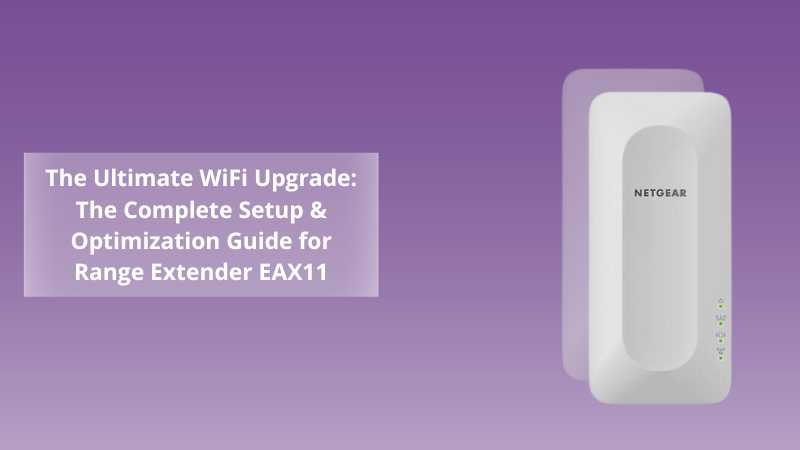
Introduction: Is Your WiFi Holding You Back?
Tired of buffering while streaming? Dropped Zoom calls during meetings? Or weak signals in your bedroom, kitchen, or backyard? It’s frustrating, especially when your main router promises full-home coverage. But what if the issue isn’t your internet plan… but your WiFi reach?
That’s where the Range Extender EAX11 steps in — your solution to those stubborn dead zones and weak connections. But how do you set it up correctly? How do you ensure it delivers the best performance?
Let’s walk through the process —, simply, and with expert tips you won’t find in the manual.
“A powerful WiFi extender is like a lighthouse for your internet signal — it guides coverage exactly where you need it.”
Let’s get started.
What is the Range Extender EAX11 — and Why Should You Care?
The Netgear EAX11 is a compact, dual-band WiFi 6 mesh extender designed to eliminate dead zones and expand your home network. It’s perfect for mid-sized homes or apartments and supports up to 1.5 Gbps speeds.
Key Features at a Glance:
-
WiFi 6 support: For faster, more efficient connections.
-
Dual-band capability: Helps balance traffic on both 2.4GHz and 5GHz bands.
-
One WiFi Name (SSID): Seamless roaming without switching networks.
-
Easy WPS & Web-based setup.
-
Compact plug-in design: Fits right into a wall outlet.
So, why should you care?
Because your smart TVs, laptops, gaming consoles, and smart devices all need strong, reliable coverage, not just speed.
Step-by-Step: How to Set Up the Range Extender EAX11
Ready to eliminate those weak signal areas? Here’s how to set up your EAX11 properly.
1. Choose the Right Location
Think of your extender like a translator — it needs to hear both sides (your router and your devices). So:
-
Place it midway between your router and the area with a poor signal.
-
Avoid placing it near microwaves, thick walls, or large metal objects.
2. Use the WPS Method (Fast & Easy)
If your router supports WPS (WiFi Protected Setup):
-
Plug in the EAX11 and wait for the Power LED to turn solid green.
-
Press the WPS button on your router.
-
Within 2 minutes, press the WPS button on the EAX11.
-
The extender connects. Watch for the Link LED to turn solid white — success!
“WPS setup is like pairing Bluetooth headphones — fast, wireless, and no password required.”
3. Web-Based Setup (For Manual Configuration)
If your router doesn’t support WPS:
-
Plug in the extender and wait for the LEDs to stabilize.
-
On your phone or laptop, connect to the extender’s network: NETGEAR_EXT.
-
Open a browser and go to www.mywifiext.net.
-
Follow the on-screen setup wizard. Choose your WiFi network, enter the password, and assign a name (SSID) for the extended network.
4. Confirm Connection Strength
-
Check the Link LED on the extender:
-
White: Excellent
-
Amber: Good
-
Red: Weak (try moving the extender closer to the router)
-
Tips for Optimizing Your EAX11’s Performance
Setting up is one thing, but optimizing? That’s the secret to getting your money’s worth.
1. Keep It Updated
Visit the admin panel at mywifiext.net and check for firmware updates. Updated firmware means better performance and security.
2. Don’t Overextend
If you place your extender too far from the router, it struggles to get a clean signal. That’s like trying to water your garden from the street with a leaky hose.
3. Connect to the Best Band
If you’re close to the extender, use the 5GHz band for speed. For long-range or multiple walls, 2.4GHz is your friend.
4. Reboot Occasionally
Extenders benefit from the occasional reboot, just like routers. Once every couple of weeks is enough.
Common Setup Problems & How to Solve Them
Even the best extenders need a little troubleshooting sometimes. Here are quick fixes for common issues:
“Mywifiext.net Not Working”
-
Make sure you’re connected to NETGEAR_EXT WiFi.
-
Try entering 192.168.1.250 in your browser.
-
Clear your browser cache or switch browsers.
“WPS LED Doesn’t Light Up”
-
Press and hold the WPS button a bit longer (3-5 seconds).
-
Try using a web-based setup instead.
“Slow Internet Even After Setup”
-
Check the extender’s placement — you may be too far from the router.
-
Too many devices connected? Prioritize or limit usage on some.
Connect Seamlessly Across Your Home
Once your EAX11 is up and running, your home becomes a true mesh network — not a patchwork of dead zones and signal drops.
“WiFi isn’t a luxury anymore — it’s the infrastructure of daily life.”
With the Range Extender EAX11, you gain:
-
Smoother 4K streaming in every room.
-
Faster gaming without lag.
-
Reliable work-from-home connections — no dropped calls.
Conclusion: Is the Range Extender EAX11 Right for You?
So, let’s revisit those questions we asked in the beginning…
-
Is your WiFi coverage inconsistent?
-
Do you experience buffering in certain rooms?
-
Are your smart home devices going offline?
If you nodded to any of those, the Netgear Range Extender EAX11 is a smart investment. It’s not just a plug-in box — it’s a powerful upgrade for your digital life.
And the best part? You don’t need to be a tech genius to install or use it.
Ready to give your WiFi the reach it deserves? Visit wifi-extsetup.com for detailed guides, expert support, and more setup help — including for other models like the AC1900 Extender.
Frequently Asked Questions (FAQ)
Q1: Can I use the EAX11 with any router?
Yes! The EAX11 is universally compatible with all standard WiFi routers.
Q2: Does the extender slow down my internet speed?
If placed correctly and using the right band, speed loss is minimal. It extends, not replaces.
Q3: What is the default login for the web-based setup?
Go to mywifiext.net, and follow the prompts. There’s no login initially, but you’ll be asked to create one during setup.
Q4: Can I use Ethernet with the EAX11?
Yes, it has an Ethernet port. Great for connecting a smart TV, PC, or gaming console directly.
Q5: How do I reset the extender to factory settings?
Hold down the reset button (located on the side) for about 10 seconds until the LEDs flash. This will erase all settings