
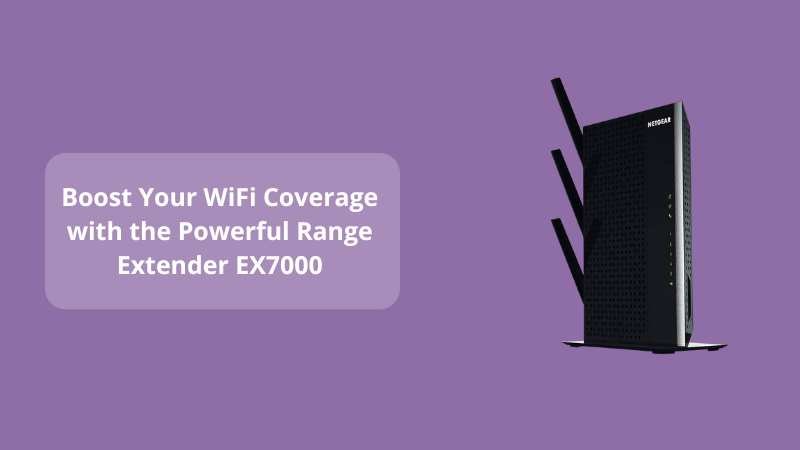
Boost Your WiFi Coverage with the Powerful Range Extender EX7000
Posted by WifiExtSetup on 10th July 2025
Introduction – Is Your WiFi Failing You When It Matters Most?
Do you often struggle with dropped video calls, slow downloads, or buffering during your favorite movies? Are some corners of your home essentially WiFi dead zones? If you’ve answered “yes,” it’s time for a change. The Range Extender EX7000 could be the game-changer you need.
This guide walks you through everything—from setup to optimization—so you can transform weak spots into strong WiFi zones. Think of it as turning your entire home into a WiFi-powered powerhouse.
“WiFi shouldn’t feel like a puzzle—it should work, effortlessly.”
How the EX7000 Stands Out
High-Speed Dual-Band Performance
The EX7000 is a dual-band WiFi extender, delivering a combined speed of up to 1900 Mbps—ideal for 4K streaming, online gaming, and multiple smart devices.
Seamless Roaming with Smart Connect
Thanks to its Smart Connect feature, the extender automatically chooses the best band (2.4GHz or 5GHz) for your device—no need to switch manually.
Multi-Device Friendly with MU-MIMO
With Multi-User MIMO, the EX7000 supports multiple devices simultaneously, preventing bottlenecks during high usage.
Step-by-Step Setup Guide for the EX7000
1. Plug In and Power On
Position the EX7000 between your router and the area with a weak signal. Plug it into a wall outlet and wait for the Power LED to turn solid green.
2. Connect via WPS
-
Press the WPS button on your router.
-
Within two minutes, press the WPS button on the extender.
-
When the Link LED turns solid blue, it’s connected!
3. Manual Web-Based Setup
-
Connect to the extender’s WiFi: NETGEAR_EXT (or similar).
-
Visit mywifiext.net in your browser.
-
Follow prompts to link the extender to your existing network.
-
Enable Smart Connect for automatic band selection.
4. Optimize Setup Location
Find the sweet spot—usually midway between router and dead zone—using the Signal LED (green = good, amber = fair, red = poor).
Tip: If you’re using a Netgear router, check out our advanced guide here: Ultimate Guide on EAX18 Setup
Advanced Tweaks for Maximum Performance
Enable FastLane™ Mode
Designate one band for router communication and the other for your devices—perfect for high-bandwidth activities like gaming or HD streaming.
Update Firmware Regularly
Access the admin page or Netgear Nighthawk app to check for firmware updates—these often fix bugs and increase performance.
Use Ethernet for Stationary Devices
Connect smart TVs or gaming consoles using the built-in Gigabit Ethernet port for rock-solid speeds.
Avoid Interference
Keep the extender away from microwaves, Bluetooth speakers, and metal obstructions for uninterrupted performance.
Troubleshooting Common EX7000 Problems
LEDs Won’t Light Up
Verify the outlet and try another socket if necessary.
WPS Connection Failed
Switch to manual web setup via mywifiext.net.
Weak Extended Signal
Try moving the extender closer to the router or use FastLane™ mode.
No Internet Access
Double-check that the extender is connected to the correct network. Reboot the router and extender if needed.
Conclusion – Is the EX7000 Your Home’s WiFi Solution?
Let’s recap:
-
Buffering shows, connectivity slows, devices stutter?
-
Want more coverage without replacing your router?
If you answered yes, then the Netgear Range Extender EX7000 is a smart choice. With its dual-band performance, MU-MIMO support, and Smart Connect, it delivers strong, seamless WiFi across your home. To ensure peak performance, simply follow proper placement and regular maintenance.
For personalized help or more in-depth guidance, visit 👉 wifi-extsetup.com
Need help troubleshooting or want advanced tips?
👉 Visit https://www.wifi-extsetup.com for expert guidance and fast support!
Frequently Asked Questions (FAQ)
Q1: Can the EX7000 connect to any router?
Yes — it supports all standard WiFi routers, regardless of brand.
Q2: What’s Smart Connect?
It automatically assigns the 2.4GHz or 5GHz band based on your device’s needs.
Q3: Should I use FastLane™ mode?
Absolutely—for activities like gaming or streaming, where speed is crucial.
Q4: Can it support multiple devices simultaneously?
Yes, thanks to MU-MIMO, which serves multiple devices efficiently.
Q5: What if I lose access to the extender’s admin page?
Reset the extender with the reset button, re-plug, and set it up from scratch using mywifiext.net.