
How to Set Up Range Extender AC EX6400v3: A Simple WiFi Upgrade Guide
Posted by WifiExtSetup on 10th May 2025
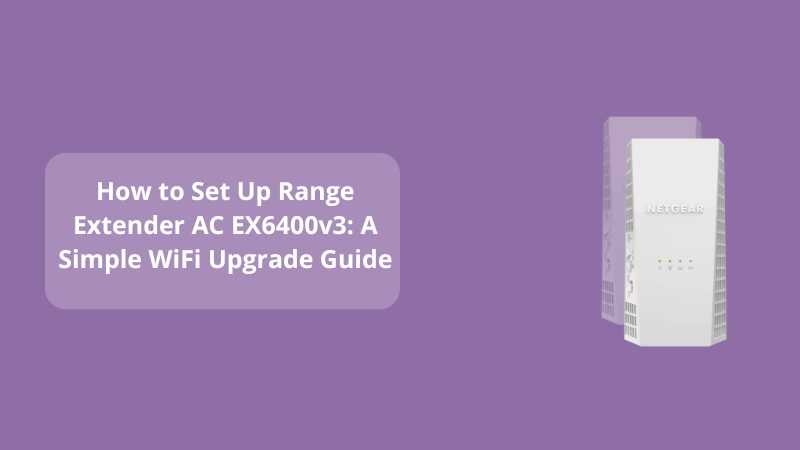
Introduction: Is Your WiFi Slowing You Down Where You Need It Most?
Have you ever wondered why your WiFi signal drops right when you’re about to join an important Zoom call or binge your favorite show in bed? Why is your internet blazing fast near the router, but turns into a digital crawl two rooms away?
You’re not alone—and the solution isn’t replacing your internet plan. It’s upgrading your coverage with a Netgear Range Extender AC EX6400v3.
But does it work? Is it easy to install? Can you set it up on your own? If these questions are floating around your head, this guide is for you. We’ll cover everything you need to know—from features to setup—and by the end, you’ll have your entire home under one strong WiFi umbrella.
Why Choose the Netgear AC EX6400v3?
Smart Design Meets High Performance
The EX6400v3 is not just another gadget; it’s a game-changer for your WiFi experience.
Here’s why it stands out:
-
Dual-band coverage: Offers up to 1900 Mbps speeds
-
Universal compatibility: Works with any router or gateway
-
Smart Roaming: Automatically connects your devices to the best available signal
-
FastLane™ Technology: Combines bands for max speed during high-bandwidth use
-
Ethernet Port: One Gigabit port for wired devices like smart TVs or gaming consoles
Think of it like this: if your main router is the lighthouse, this extender acts like a mirror, guiding the signal where light (WiFi) couldn’t reach before.
“The right tool can turn a weak signal into a strong connection—and the EX6400v3 does just that.”
How to Set Up the Netgear Range Extender AC EX6400v3
Setting up your range extender doesn’t require a tech degree. Here’s how to do it easily in two different ways:
Option 1: WPS Setup—One-Button Simplicity
This is the fastest route if your router supports WPS (Wi-Fi Protected Setup).
Steps:
-
Plug the extender into a power outlet near your router.
-
Wait until the power LED glows solid green.
-
Press the WPS button on the extender.
-
Within two minutes, press the WPS button on your router.
-
Wait for the Router Link LED to turn solid green.
Success! Your extender is now connected. Repeat the process for the 5 GHz band if applicable.
📌 Pro Tip: After setup, move the extender to an area where your WiFi signal is weak but still within range of your router.
Option 2: Manual Web-Based Setup
If your router doesn’t support WPS, no worries—this method gives you full control.
Steps:
-
Plug in the extender and wait for the power LED to turn green.
-
On your laptop or smartphone, connect to the NETGEAR_EXT WiFi network.
-
Launch your browser and enter:
👉 www.mywifiext.net -
Click on New Extender Setup.
-
Create an account (or log in if you already have one).
-
Choose the WiFi network you want to extend.
-
Enter your WiFi password.
-
Rename your extended network if desired.
-
Save and reconnect to your new network.
“If you can use a web browser, you can install this range extender. It’s that straightforward.”
Where Should You Place Your EX6400v3 for Maximum Coverage?
The success of your WiFi extender heavily depends on its location. Think of it like placing a lamp—you want the light to reach, not be blocked by furniture.
Here are three rules of thumb:
-
Place it halfway between your router and the WiFi dead zone.
-
Avoid obstacles like walls, metal, and kitchen appliances.
-
Use LED indicators on the extender to determine the best signal strength.
Green = Strong Signal
Amber = Average Signal
Red = Weak Signal (Reposition Needed)
Troubleshooting Common Setup Issues
Even with a seamless setup process, you might hit a speed bump. Here are quick solutions:
Can’t access mywifiext.net?
-
Make sure you’re connected to NETGEAR_EXT.
-
Try using 192.168.1.250 in your browser.
-
Clear your browser cache or switch to a different browser.
WPS Button Not Working?
-
Check if your router supports WPS (not all do).
-
Try rebooting both the router and the extender.
-
Fall back on manual setup if needed.
Still Not Getting Full Speed?
-
Connect to the 5 GHz band for faster speeds.
-
Use the FastLane™ feature via web setup to prioritize performance.
-
Relocate the extender slightly closer to the router.
“When in doubt, don’t shout—just reboot.”
Need Help? Get Expert Support Instantly
Struggling with setup or connectivity? You’re not alone—and you’re not out of options.
Visit 👉 WiFi-ExtSetup.com for 24/7 assistance, remote troubleshooting, and expert tips. Whether you’re a first-timer or dealing with a stubborn signal issue, we’re here to help.
“You shouldn’t need a technician for a strong connection—just a little expert guidance.”
Conclusion: Is the Netgear EX6400v3 the WiFi Upgrade You Need?
Remember the questions we started with?
-
Why does my WiFi drop in some rooms?
-
Can I fix it without replacing my router?
-
Is setting up a range extender difficult?
The answer to all three: The EX6400v3 makes it easy.
With just a few steps and a smart placement, this little device can eliminate frustrating dead zones and deliver reliable, high-speed internet throughout your home or office.
So, if you’re tired of battling your own WiFi in your favorite spaces—it’s time to take control.
Strong signal. Simple setup. One solution: EX6400v3.
FAQs: Netgear Range Extender AC EX6400v3
Q1: What’s the difference between EX6400v2 and EX6400v3?
A: While both models are similar in function, the v3 typically includes firmware and hardware improvements for better stability and performance.
Q2: Can I use EX6400v3 with a non-Netgear router?
A: Absolutely. It works with all standard routers and gateways.
Q3: How many devices can I connect to this extender?
A: There’s no specific limit, but connect up to 15-20 devices simultaneously for best performance.
Q4: Is there a mobile app for setup?
A: Yes. You can use the Nighthawk app for guided setup and device management.
Q5: Can I use the Ethernet port for a gaming console?
A: Yes! The Gigabit Ethernet port is perfect for wired connections that need high speed and low latency.