
How to Set Up Range Extender PR2000: Your Pocket-Sized WiFi Lifesaver
Posted by WifiExtSetup on 15th May 2025
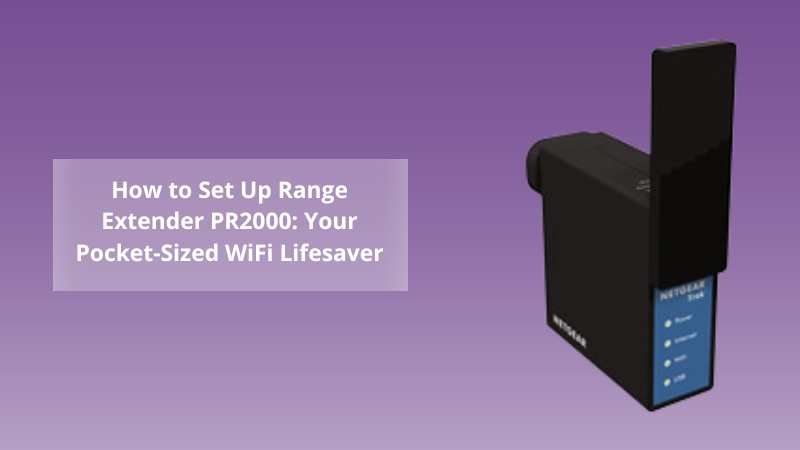
Ever felt like your WiFi takes a lunch break just when you’re on an important video call?
Or maybe your Airbnb rental has a weak signal in the back room, and your mobile hotspot isn’t cutting it?
That’s exactly where the Netgear Range Extender PR2000 comes in—a compact, travel-ready WiFi extender that plugs directly into any wall socket and gets to work boosting your signal. But here’s the real question: how do you set it up without getting tangled in wires, settings, or tech jargon?
Let’s walk through this, step by step.
What Is the Netgear PR2000 and Why Should You Use It?
If you travel frequently, live in a smaller space, or simply need WiFi in that one room your router refuses to reach—this device is a game-changer.
The Netgear PR2000 WiFi Range Extender is:
-
A portable dual-band extender
-
Equipped with a built-in firewall and USB media sharing
-
Ideal for travelers, small apartments, and mobile professionals
Imagine it as your WiFi assistant on the go—plug it in, and weak signals become strong, fast, and steady.
“It’s not about having WiFi. It’s about having WiFi where you need it.”
Quick Setup via WPS: Plug and Play Simplicity
Let’s start with the easiest route—WPS (Wi-Fi Protected Setup). No apps, no passwords, just a couple of button presses.
Steps to Set Up PR2000 Using WPS:
-
Plug your PR2000 into a wall outlet near your main router.
-
Wait until the Power LED turns green.
-
Press the WPS button on the extender.
-
Within 2 minutes, press the WPS button on your main WiFi router.
-
Look for the Device to Extender LED and Router to Extender LED to turn solid—this confirms the connection.
💡 Optional: Move your PR2000 to a location where you need better coverage. Make sure the Router-Extender LED remains green or amber.
Manual Setup Using a Web Browser
No WPS on your router? Prefer a bit more control? The web-based setup is just as effective—and not as complicated as it sounds.
Step-by-Step Manual Configuration:
-
Plug in the extender and wait for a stable power LED.
-
Connect your device (laptop/tablet/phone) to:
👉 NETGEAR_EXT -
Open a browser and go to:
👉 http://mywifiext.net or 192.168.1.250 -
On the welcome screen, select “New Extender Setup.”
-
Follow on-screen instructions:
-
Choose your existing WiFi network
-
Enter the password
-
Name the extended network (or keep the default)
-
-
Once configured, reconnect your devices to the extended WiFi network.
This method also gives you access to admin settings, security features, and more control over how the extender operates.
What Comes in the Box?
When you unbox your PR2000, you’ll find:
-
Netgear PR2000 Travel Router and Extender
-
Power plug (integrated)
-
Quick Start Guide
-
(Optional) USB sharing cable
Yes, it’s tiny—but mighty.
Troubleshooting Tips You’ll Be Glad You Know
Even the best gadgets act up occasionally. Here’s how to handle the most common PR2000 issues:
-
Can’t access mywifiext.net?
-
Ensure you’re connected to NETGEAR_EXT
-
Try clearing your browser cache
-
Use a different browser or switch to Incognito
-
-
No internet after setup?
-
Double-check router credentials
-
Reset and redo the setup steps
-
Place the extender closer to the router
-
-
Resetting the PR2000:
-
Use a paperclip to press and hold the reset button for 10 seconds.
-
Still stuck? Don’t sweat it—get live support at
👉 https://www.wifi-extsetup.com
📱 On the Go? Use PR2000 as a Travel Router
One of the best-kept secrets of this extender is its Travel Router Mode. It allows you to connect to public WiFi (like hotel hotspots) and create your own private, secure WiFi network.
How to Activate Travel Router Mode:
-
Plug in PR2000 at your hotel or temporary location.
-
Connect to NETGEAR_EXT and open a browser.
-
Navigate to http://mywifiext.net
-
Choose “Access Point Mode” or “Router Mode.”
-
Follow the prompts to share the existing public WiFi securely.
“Public WiFi is like a swimming pool—fine to use, but better with your clean towel.”
Upgrade Your Network: A Word About Powerful Alternatives
Looking to cover a large home or multi-floor workspace?
You may want to explore more powerful options like the
👉 Range Extender AC EX8000: The Complete Setup Guide
A beast compared to PR2000—it’s like comparing a bicycle to a sports car. Perfect if you’re scaling up
Conclusion: Is the PR2000 Worth It?
So, is the Netgear Range Extender PR2000 still a smart choice in 2025?
Absolutely—if you need a compact, budget-friendly, travel-ready solution. It’s not trying to be the strongest, just the most flexible. For anyone constantly on the move or living in a small space, it delivers exactly what it promises—reliable WiFi when and where you need it.
“The best WiFi extender is the one that’s there when you need it—PR2000 doesn’t just extend your range; it extends your peace of mind.”
Need expert help setting it up?
💬 Chat with us live or visit
👉 https://www.wifi-extsetup.com
for 1-on-1 assistance, free guides, and pro setup tips.
.
🙋♀️ Frequently Asked Questions (FAQ)
Q1. Can I use PR2000 with any router?
A: Yes. It works with all standard WiFi routers, including older models.
Q2. Is PR2000 good for streaming or gaming?
A: It’s ideal for light use—emails, web browsing, and media streaming. For intense online gaming or 4K streaming, consider a higher-bandwidth extender like the EX8000.
Q3. Can I rename the extended WiFi network?
A: Yes. During manual setup, you’ll be prompted to keep the default name or enter a custom SSID.
Q4. Does PR2000 support 5 GHz?
A: No. The PR2000 supports 2.4GHz only, which is better for longer range but lower speed compared to 5GHz.
Q5. Can I share files using the USB port?
A: Yes. The PR2000 includes a USB port for media/file sharing on the network.