
Boost Seamless Connectivity with Range Extender N300: A Complete Setup & Optimization Guide
Posted by WifiExtSetup on 07th June 2025
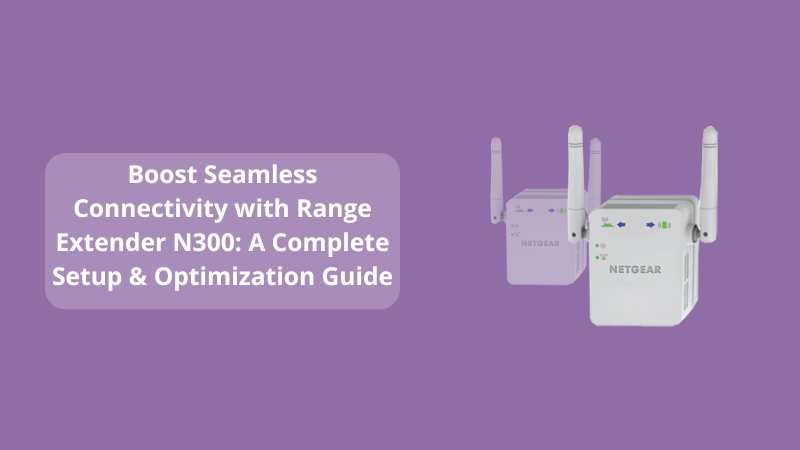
Introduction: Struggling with WiFi Dead Zones? You’re Not Alone
Have you ever found yourself waving your phone in the air, hoping to catch just one more bar of WiFi in that stubborn corner of your home? Or does your video call freeze the moment you step into another room? In a world that’s always connected, weak WiFi is a modern-day nightmare. That’s where the Range Extender N300 comes into play—your simple yet powerful solution to blanket your space with seamless connectivity.
But how do you set it up correctly? Can it truly eliminate dead zones without slowing down your speed? Let’s uncover the answers.
What is the Range Extender N300, and Why Do You Need It?
The Netgear Range Extender N300 is a compact yet effective WiFi booster that enhances your existing network’s coverage. It doesn’t replace your router—it works with it to push your signal farther, eliminating those frustrating gaps in coverage.
Key Benefits:
-
Extends WiFi up to 300 Mbps
-
Compact, wall-plug design
-
Universal compatibility with any router
-
Ideal for streaming, browsing, and light gaming
“The N300 is like giving your WiFi wings—no more buffering, just browsing.”
How to Set Up the Range Extender N300: Step-by-Step Instructions
1. Placement is Everything
Before you even plug it in, choose the right location. Aim for a spot midway between your router and the weak signal area—not too far from the router, but close enough to the dead zone.
2. Power It Up
-
Plug the N300 into a wall socket.
-
Wait for the Power LED to turn green.
3. Connect via WPS (Simplest Method)
-
Press the WPS button on your router.
-
Within 2 minutes, press the WPS button on the N300.
-
Wait for the LED light to turn solid green, indicating a successful connection.
Tip: If your router doesn’t support WPS, skip to the manual method below.
4. Manual Setup via Web Browser
-
Connect to the extender’s WiFi network: NETGEAR_EXT
-
Open a browser and go to http://www.mywifiext.net
-
Follow the on-screen steps:
-
Choose your existing WiFi network
-
Enter your network password
-
Assign a name to the extended network
-
5. Confirm and Test
-
Once configured, connect your devices to the new extended network.
-
Walk around and test speeds—you should notice a dramatic improvement.
Common Issues and Quick Fixes
Even with its user-friendliness, the N300 may occasionally act up. Here’s how to deal:
Problem: Can’t connect to mywifiext.net?
-
Make sure you’re connected to NETGEAR_EXT
-
Clear browser cache or try a different browser
Problem: WiFi signal still weak?
-
Try repositioning the extender closer to your router
-
Avoid placing it near microwaves or thick walls
Problem: LED not turning green?
-
Reset the extender by holding the Reset button for 10 seconds
-
Re-attempt WPS or manual setup
Performance Tips: Make the Most of Your N300
Want to get the best performance out of your Range Extender N300? Here’s how:
1. Keep Firmware Updated
Regular updates fix bugs and improve stability. Visit Netgear’s official site for the latest firmware.
2. Use a Unique SSID
Don’t use the same name as your main WiFi. A different name (like “HomeWiFi_EXT”) helps avoid confusion between networks.
3. Limit Interference
Position your device away from Bluetooth devices, cordless phones, or thick walls to minimize signal interference.
Sales Pitch: Why Wait to Enjoy Seamless WiFi?
Still on the fence about upgrading your coverage?
Imagine buffer-free streaming, no dropped Zoom calls, and consistent gaming performance—even in the basement or upstairs bedroom. The Range Extender N300 is an affordable upgrade with a big impact.
👉 Visit wifi-extsetup.com and discover more setup guides, expert tips, and the tools to make your WiFi woes history.
Conclusion: Is the Range Extender N300 Right for You?
Back to the questions we raised earlier—can the N300 truly solve your weak signal issues? The answer is a solid yes—if set up properly and placed smartly, it can transform your frustrating WiFi experience into a smooth and strong connection throughout your space.
So, what’s stopping you? For under the cost of a dinner out, you can fix what’s broken in your digital life.
“Dead zones are dead for a reason. Bury them with N300.”
FAQs: Range Extender N300
Q1. Can I use the N300 with any router?
Yes! It’s universally compatible with all standard WiFi routers.
Q2. What’s the coverage range of the N300?
It typically covers up to 1000 square feet, depending on your home’s structure.
Q3. Can I use multiple N300 extenders?
Yes, but space them out carefully to avoid signal overlapping.
Q4. Does the N300 support dual-band?
No, it operates only on the 2.4 GHz band. It’s ideal for light usage like browsing and streaming.
Q5. Is there a mobile app for setup?
No dedicated app, but setting up through the browser is simple and fast.