
Boost Your WiFi Seamlessly: Step-by-Step Setup Guide for EX6120
Posted by WifiExtSetup on 11th June 2025
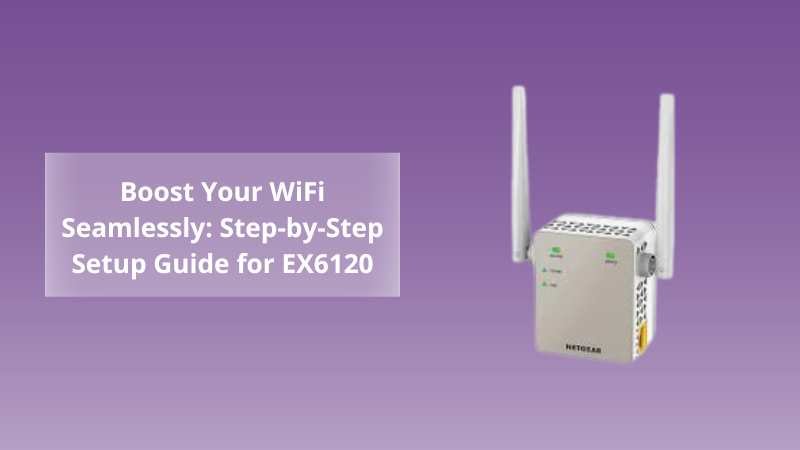
Struggling with dead zones in your home or office? Your router alone can’t always reach every corner, especially in larger spaces or multi-floor buildings. That’s where a WiFi extender comes in, and if you’ve landed here, you’re probably looking for help setting up the Netgear EX6120.
In this article, we’ll walk you through the complete setup process of the EX6120 in simple, actionable steps. Whether you’re tech-savvy or a first-time user, this guide ensures a smooth experience from unboxing to full connectivity.
Why Choose the Netgear EX6120?
Before we dive into setup, let’s look at why the EX6120 is a great choice:
-
Dual-band WiFi speeds up to 1200Mbps
-
FastLane™ technology for high-performance streaming and gaming
-
Compact wall-plug design with a discreet look
-
Universal compatibility with any WiFi router
-
Built-in Ethernet port for connecting wired devices like gaming consoles or smart TVs
If you want to extend your WiFi without upgrading your router or changing your internet plan, the EX6120 is the smart way to go.
Unboxing the EX6120: What’s Inside?
When you open the box, you’ll find:
-
Netgear EX6120 Range Extender
-
Quick start guide
-
Warranty and support information
Make sure your extender is in good condition and place it near your router for the initial setup.
How to Set Up EX6120 Using WPS (Wi-Fi Protected Setup)
This is the quickest method and doesn’t require you to log into any website or interface.
Step-by-Step WPS Setup
-
Plug in the EX6120
Insert the extender into a power outlet near your existing WiFi router. Wait for the power LED to light solid green. -
Press the WPS Button on your router.
Locate and press the WPS button on your router. You’ll have around 2 minutes to complete the next step. -
Press the WPS Button on the extender.
Press the WPS button on the EX6120. The extender’s WPS LED will start blinking. When it turns solid green, the connection is successful. -
Check Connectivity
The Router Link LED should be solid green or amber. This means the extender is connected to your WiFi network. -
Relocate the Extender
Move the EX6120 to a location halfway between your router and the WiFi dead zone. Avoid placing it near thick walls, microwaves, or metal objects. -
Connect Your Devices
Use the new extended SSID (usuallyYourNetwork_EXT) to connect your phone, laptop, or smart device.
“WPS is like a one-click handshake between your router and extender—fast and simple.”
How to Set Up EX6120 Using Web Browser (Manual Setup)
If your router doesn’t support WPS or you prefer manual setup, use this method.
Step-by-Step Browser-Based Setup
-
Connect to the Extender Network
On your computer or phone, go to your WiFi settings and connect to.NETGEAR_EXT -
Launch a Web Browser
Open any browser (Chrome, Safari, Firefox) and typewww.mywifiext.netor192.168.1.250In the address bar. -
Create an Account or Log In
You’ll be asked to create an admin account for future access to extender settings. -
Choose Setup Option
Select “WiFi Range Extender” setup. -
Select Your WiFi Network
The extender will scan for available networks. Choose your main WiFi network and enter the password. -
Assign Extended SSID
You can keep the default name with_EXT“added” or customize it. -
Reconnect Your Devices
Use the new SSID and password to connect your devices. -
Finalize Placement
Unplug the EX6120 and move it to the optimal location—midway between the router and the low-signal zone.
Pro Tips to Maximize EX6120 Performance
Want to squeeze the most out of your extender? Here are some simple optimization tips:
-
Enable FastLane™ Mode in the settings to dedicate one band to the router and the other to your device
-
Update firmware regularly via
mywifiext.netto ensure stability and performance -
Avoid overlapping WiFi channels that may cause interference from nearby networks
-
Place your extender high and in the open, not behind furniture or inside cabinets
Common Setup Issues and Quick Fixes
Issue: Can’t access mywifiext.net
Fix: Connect to NETGEAR_EXTClear browser cache, and try 192.168.1.250instead.
Issue: No internet even after connecting to EX6120
Fix: Recheck your router password during setup. Also, restart both the extender and router.
Issue: Weak signal from the extender
Fix: Move the extender closer to the router and check the LED signal indicator.
Final Thoughts: Is EX6120 Setup Worth It?
Absolutely. The Netgear EX6120 doesn’t just extend your WiFi—it transforms how and where you stay connected. With a user-friendly setup, reliable signal boost, and smart design, this device eliminates the need for expensive mesh systems or second routers.
“In a connected world, the EX6120 is your bridge to uninterrupted WiFi freedom.”
Whether you choose WPS for a one-click setup or go the manual route, you’ll have your new WiFi zone running in no time.
Need More Help?
📍 Visit the full optimization guide for other extenders:
👉 Revamp Your Connectivity: WN3500RP Setup Guide
Or explore our expert guides at:
🌐 https://www.wifi-extsetup.com
FAQs – Range Extender EX6120
Q1: Can the EX6120 work with any WiFi router?
Yes, it’s universally compatible with all standard routers and ISPs.
Q2: Does it support both 2.4 GHz and 5 GHz bands?
Absolutely. It intelligently switches between both for optimal speed.
Q3: Is it good for gaming or 4K streaming?
With FastLane enabled, the EX6120 can handle gaming and HD streaming like a breeze.
Q4: How do I reset my EX6120?
Press and hold the reset button for 10 seconds until the LEDs flash.
Q5: What if my router doesn’t support WPS?
Use the web setup method.www.mywifiext.net It’s just as effective.