
Boost Your Wi-Fi Signal With Range Extender AC EX6100v2: Complete Setup Guide
Posted by WifiExtSetup on 05th May 2025
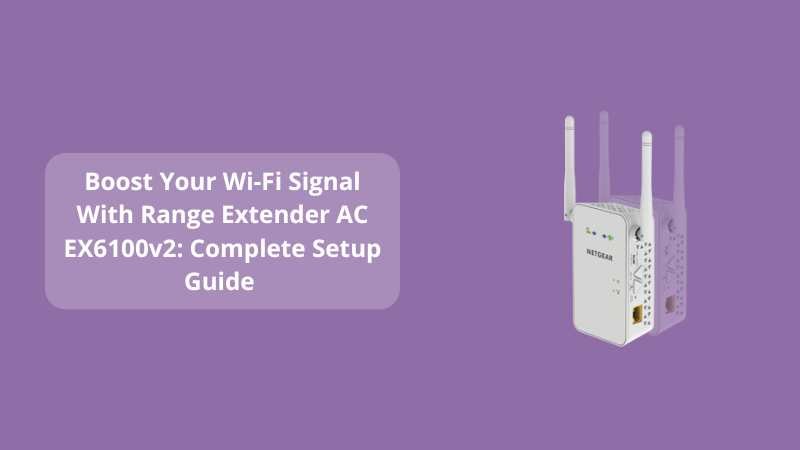
Introduction: Is Your Wi-Fi Letting You Down?
Imagine this: you’re on a video call in your bedroom, and suddenly, your connection freezes. Or you’re streaming your favorite show in the living room, and it keeps buffering. Frustrating, right?
Wi-Fi dead zones are a common problem in many homes and offices. Whether it’s thick walls, large spaces, or interference from other devices, signal loss is inevitable — unless you upgrade your setup.
Enter the Range Extender AC EX6100v2 from Netgear — a compact yet powerful solution designed to extend your Wi-Fi reach and eliminate dead spots.
But how do you set it up properly? What features make it worth the investment? And is it the right fit for your space?
Let’s dive deep.
What is the Range Extender AC EX6100v2?
The Netgear AC EX6100v2 is a dual-band Wi-Fi range extender that improves your network coverage, boosts speed, and ensures seamless connectivity across your home or workspace. It’s designed for users who want better Wi-Fi without replacing their router.
Key Features at a Glance:
-
Dual Band Support: 2.4GHz (up to 300Mbps) + 5GHz (up to 433Mbps)
-
FastLane Technology: Optimizes performance by combining both bands
-
Gigabit Ethernet Port: Connect wired devices like smart TVs or gaming consoles
-
Universal Compatibility: Works with any Wi-Fi router or modem
-
Smart LED Indicators: Helps with optimal placement
How to Set Up Your Range Extender AC EX6100v2 (Step-by-Step)
Setting up the EX6100v2 is simple, and you don’t need to be a tech wizard.
Option 1: WPS Setup (Fast & Easy)
-
Plug the EX6100v2 into a wall outlet.
-
Wait for the Power LED to turn green.
-
Press the WPS button on the extender.
-
Within 2 minutes, press the WPS button on your router.
-
Look for a solid green Router Link LED to confirm connection.
-
Repeat the process for the 5 GHz band (if needed).
Pro Tip: WPS is the fastest way to connect. It skips the manual setup process entirely.
Option 2: Web Browser Setup (Manual)
-
Connect your device (laptop, phone, or tablet) to the NETGEAR_EXT Wi-Fi network.
-
Open a browser and visit http://mywifiext.net.
-
Follow the on-screen instructions.
-
Choose the network you want to extend.
-
Set a new name (SSID) for the extended network or keep it the same.
Where Should You Place the EX6100v2?
Think of your Wi-Fi network like sunlight. The farther you go from the source (router), the dimmer it gets. Your EX6100v2 acts like a mirror, reflecting that light to shadowy corners of your home.
Best Placement Tips:
-
Place it midway between your router and the Wi-Fi dead zone.
-
Avoid placing it near microwaves, thick walls, or metal objects.
-
Use the LED indicators — Green is ideal, Amber is okay, Red means too far.
“A Wi-Fi extender is only as good as its placement. Think smart, not far.”
Common Setup Issues and Their Fixes
1. Can’t access mywifiext.net?
Make sure you’re connected to the NETGEAR_EXT network. Clear your browser cache and try again.
2. WPS Doesn’t Connect?
Ensure both devices support WPS. Restart both the router and the extender and try again.
3. Still Experiencing Weak Signal?
Reposition your extender. Even moving it a few feet can make a big difference.
Why Choose the Netgear EX6100v2 Over Other Extenders?
The market is full of Wi-Fi extenders — but the EX6100v2 brings together performance, reliability, and value in one compact device.
Here’s how it compares:
| Feature | EX6100v2 | Basic Extenders |
|---|---|---|
| Dual-Band | ✅ | ❌ |
| Gigabit Ethernet Port | ✅ | ❌ |
| Smart LED Placement Aid | ✅ | ❌ |
| FastLane Technology | ✅ | ❌ |
| Universal Compatibility | ✅ | ❌ |
Looking for More Power?
If you have a larger home or multiple devices, consider upgrading to the Range Extender AC EX6250v2: The Ultimate Fix for Wi-Fi Dead Zones.
This blog covers how the EX6250v2 offers even faster speeds, extended coverage, and more device support — perfect for gaming or 4K streaming.
Frequently Asked Questions (FAQs)
Q1: What’s the difference between EX6100v2 and EX6250v2?
A: The EX6250v2 offers higher speed (up to 1750Mbps), covers a wider area, and is better for large homes or heavy internet users.
Q2: Do I need a Netgear router for this to work?
A: No. The EX6100v2 is compatible with any standard Wi-Fi router.
Q3: Will it slow down my internet speed?
A: Not if properly placed. Using FastLane technology, it optimizes performance and keeps speeds stable.
Q4: Can I use it for gaming or 4K streaming?
A: Absolutely. Use the 5 GHz band for high-performance tasks like gaming, video calls, or UHD streaming.
Q5: How do I reset the EX6100v2?
A: Press and hold the Reset button (usually a small pinhole) for about 10 seconds until the LED lights blink.
Q6: Can I use Ethernet with this extender?
A: Yes! The Gigabit Ethernet port allows you to connect devices directly for a stable, wired connection.
Conclusion: Is the Range Extender AC EX6100v2 Right for You?
If you’re battling Wi-Fi dead zones, dealing with slow loading speeds, or just tired of poor signal, the Netgear AC EX6100v2 is a smart, affordable solution.
It’s user-friendly, feature-packed, and compatible with any network setup. Whether you’re a remote worker, gamer, or streamer, this device makes your Wi-Fi woes disappear.
Ready to supercharge your Wi-Fi signal and take control of your network?
🚀 Visit wifi-extsetup.com today and get step-by-step assistance for your setup needs.