
How to Set Up Netgear Range Extender AC EAX15v2: A Step-by-Step Guide
Posted by WifiExtSetup on 14th May 2025
Is your WiFi constantly dropping in certain corners of your home? Wondering why your high-speed internet feels like dial-up in your bedroom or basement?
Here’s the truth: even the best routers have a coverage limit.
That’s where the Netgear Range Extender AC EAX15v2 steps in—designed to push your WiFi farther, faster, and stronger. But how do you set it up properly?
Let’s dive into a step-by-step setup that won’t leave you scratching your head.
🚀 What Is Netgear EAX15v2 and Why Should You Use It?
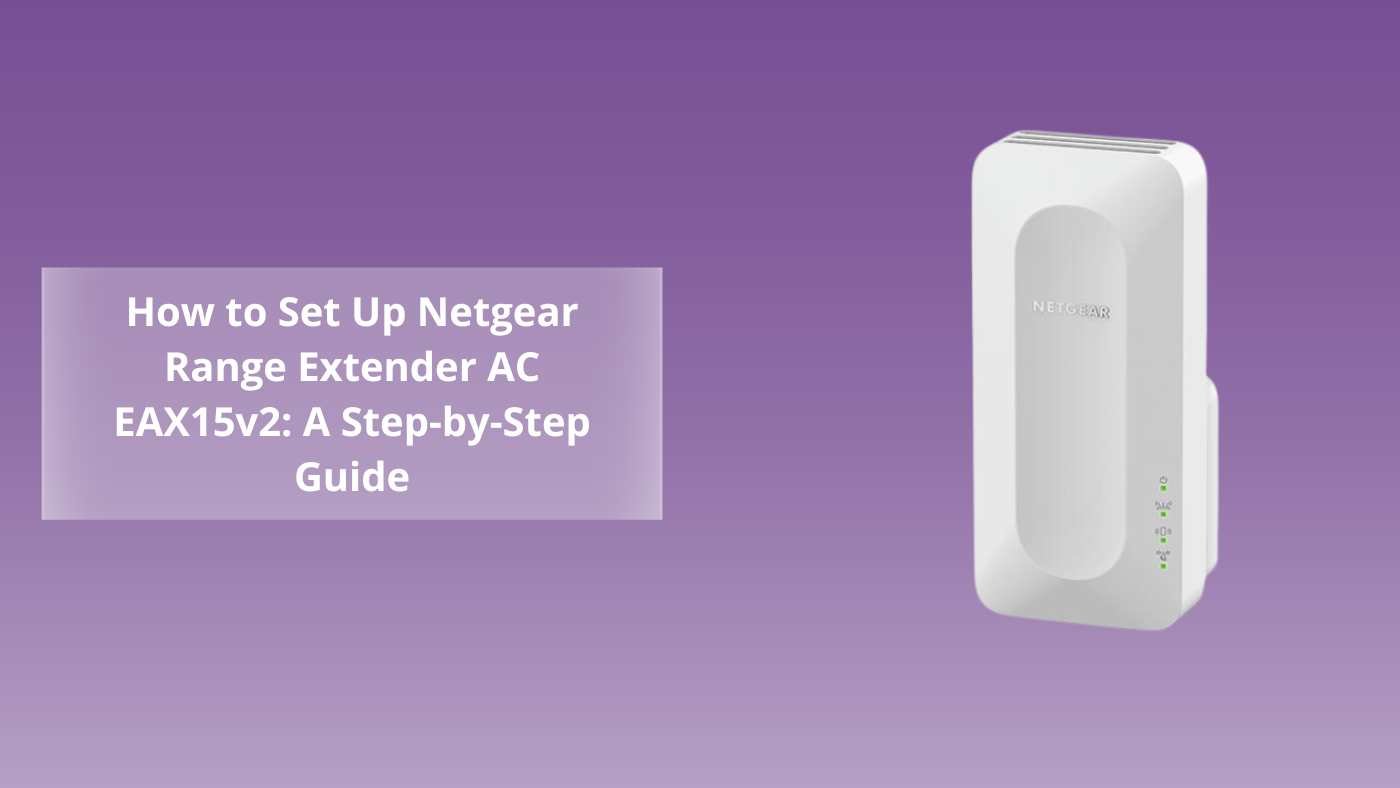
The Netgear EAX15v2 is a dual-band WiFi 6 mesh extender. Unlike basic extenders, it supports AX1800 speed, seamless roaming, and One WiFi Name, making it feel like you’re always connected to one network, even as you move from room to room.
Think of it as a WiFi booster with a turbo engine.
Whether you’re streaming 4K, gaming online, or just working from home—this little device helps eliminate buffering and dead zones in seconds.
🛠️ Method 1: WPS Setup – The Easiest Way
Don’t want to fuss with passwords or settings?
Use the WPS (Wi-Fi Protected Setup) button.
Steps:
-
Plug in the EAX15v2 near your existing WiFi router.
-
Wait for the Power LED to turn solid white.
-
Press the WPS button on the extender.
-
Within 2 minutes, press the WPS button on your router.
-
Wait for the Link LED on the extender to turn solid white or green.
📍 Optional: Repeat the same steps for 5GHz band if your router supports it.
-
Once connected, relocate the extender halfway between your router and the area with poor signal.
-
Confirm a strong connection by ensuring the Link LED stays solid.
“Plug, press, and connect—it’s that easy.”
🌐 Method 2: Manual Setup via Web Browser
If your router doesn’t have a WPS button or you want full control, go with the browser-based setup.
Steps:
-
Plug in the extender and wait for the LED to stabilize.
-
Connect your computer, smartphone, or tablet to the extender’s WiFi:
👉 NETGEAR_EXT -
Open a web browser and go to:
👉 http://mywifiext.net
(Alternate: 192.168.1.250) -
Click on “New Extender Setup.”
-
Create your admin credentials (username & password).
-
Choose your WiFi network from the list.
-
Enter the WiFi password and confirm.
-
Decide if you want to use the same network name (SSID) or a new one for the extender.
-
Wait for the connection to complete.
-
Reconnect your devices to the newly extended WiFi network.
💡 Tip: Use the Nighthawk app for an easier mobile setup and monitoring.
⚙️ Placement Tips for Best Performance
Proper placement is half the setup battle. Use these tips:
-
Avoid placing the extender near microwaves, cordless phones, or thick walls.
-
Place it midway between the router and weak signal areas.
-
Use the Link LED color to judge the signal:
-
Green = Good
-
Amber = Fair
-
Red = Weak
-
📶 “WiFi is like water—it flows better when there are fewer obstacles.”
🧠 Troubleshooting Common Setup Issues
-
Can’t access mywifiext.net?
-
Make sure you’re connected to NETGEAR_EXT.
-
Try 192.168.1.250 in the browser.
-
Clear browser cache or try Incognito mode.
-
-
WPS not connecting?
-
Reboot both your extender and router.
-
Make sure you’re within 6-10 feet of the router.
-
-
LED shows red or no internet?
-
Move the extender closer to the router.
-
Check your main WiFi connection.
-
Need more support? Visit
👉 https://www.wifi-extsetup.com
Or explore this related setup guide:
👉 Upgrade Your WiFi Experience with Range Extender AC EX8000: The Complete Setup Guide
📦 What’s in the Box?
When you unbox your Netgear EAX15v2, you should find:
-
1 × EAX15v2 Extender
-
1 × Power Adapter
-
1 × Quick Start Guide
If anything’s missing, contact Netgear Support before setting it up.
📞 Need Help? Get Personalized Support
Want a professional to guide you live? Or looking for remote help?
📱 Contact the team at WiFi Ext Setup for instant support and troubleshooting help.
Visit: https://www.wifi-extsetup.com
We help you connect smarter, not harder.
🙋♂️ Frequently Asked Questions (FAQ)
Q1. What is the default login for Netgear EAX15v2?
A: You don’t need a preset login. You’ll create your own admin username and password during setup at mywifiext.net.
Q2. How do I reset the extender?
A: Hold the reset button for 10 seconds using a pin or paperclip until the Power LED blinks. Then reconfigure it from scratch.
Q3. Can I use the same SSID as my router?
A: Yes, during manual setup you can choose to use the same SSID to enable seamless roaming.
Q4. Is the EAX15v2 compatible with any router?
A: Yes, it works with all WiFi 6 and earlier-generation routers.
Q5. Is the Nighthawk app necessary?
A: It’s optional but very helpful for monitoring speed, devices, and coverage.
🧩 Final Thoughts: Is the Netgear EAX15v2 Worth It?
So—does the Netgear EAX15v2 really solve dead zones?
Yes, when set up properly, it can feel like a completely new internet experience. No lag. No drops. Just strong, seamless coverage everywhere.
Whether you’re hosting Zoom calls in the attic or gaming in the basement, this range extender makes sure you stay connected.
“WiFi is no longer a luxury—it’s a lifeline. Why compromise on its reach?”