
How to Set Up Netgear Range Extender AC EX6400v2: A Step-by-Step Guide
Posted by WifiExtSetup on 09th May 2025
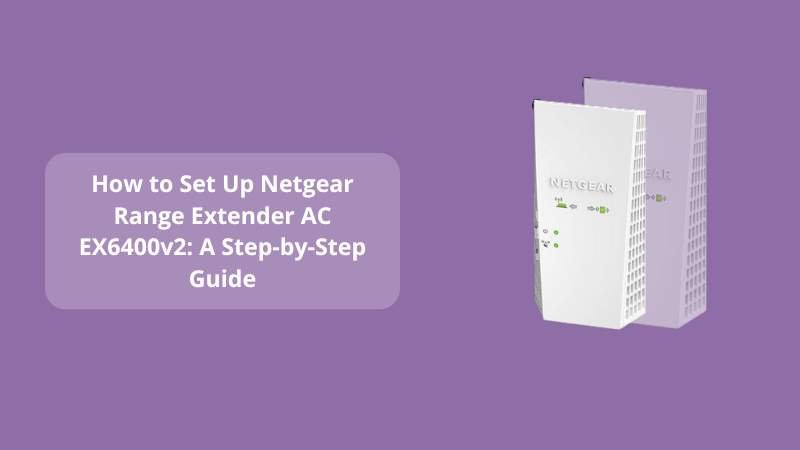
Introduction: Is Weak Wi-Fi Holding You Back?
Ever find yourself in a corner of your home where your Wi-Fi simply disappears? You’re not alone. In an age where every device we own begs for bandwidth, losing signal strength—even briefly—can feel like a digital blackout. But what if there was a simple fix to eliminate dead zones and revive weak signals?
Enter the Netgear Range Extender AC EX6400v2—a reliable solution for extending your network reach. But how easy is it to set up? Can you really fix your Wi-Fi in minutes without calling a tech expert?
Let’s walk through the setup process together.
What Is the Netgear AC EX6400v2 and Why Should You Care?
Key Features at a Glance:
- Dual-band Wi-Fi speeds up to 1900 Mbps
- Covers up to 2100 sq. ft.
- Connects up to 30 devices
- Universal compatibility with any router
- Gigabit Ethernet port for wired connections
This device doesn’t just patch your Wi-Fi—it amplifies it. Whether you’re working from a basement office or streaming in the attic, the EX6400v2 can bridge the gap between your router and the unreachable zones of your home.
“Think of your EX6400v2 like a Wi-Fi lighthouse—casting a signal into places your router forgot.”
Step-by-Step Setup: Two Easy Methods
1. WPS Method (Wi-Fi Protected Setup) – Easiest Option
Perfect for beginners. No computer or app needed.
Steps:
- Plug the extender into a power outlet halfway between your router and the dead zone.
- Wait for the Power LED to turn solid green.
- Press the WPS button on your extender.
- Within 2 minutes, press the WPS button on your router.
- Once connected, the Router Link LED will turn solid green.
- Repeat for the 5 GHz band (if your router supports it).
- Move the extender to your preferred location—just ensure it’s still within range of your router’s signal.
2. Web Browser Setup – Manual but More Detailed
Ideal for custom settings or older routers.
Steps:
- Plug in the extender and wait for the Power LED to light green.
- On your computer or phone, connect to the extender’s default Wi-Fi:
NETGEAR_EXT - Open a browser and type:
www.mywifiext.net - Click on New Extender Setup.
- Create an admin account and answer a few security questions.
- Select your existing Wi-Fi network and enter the password.
- Name your extended network (e.g., MyWiFi_EXT).
- Once setup completes, reconnect your devices to the new network name.
“If you can set up a Netflix account, you can set up this extender.”
Tips for Optimal Placement and Performance
- Halfway Rule: Place the extender midway between your router and the dead zone.
- Avoid Obstacles: Keep away from thick walls, microwaves, and cordless phones.
- Use the LEDs: Netgear’s LED indicators show connection quality—green is good, amber is okay, red means move it closer to the router.
Troubleshooting Common Issues
Problem: Can’t Access www.mywifiext.net
- Make sure you’re connected to NETGEAR_EXT.
- Try using 192.168.1.250 in your browser.
- Clear your cache or try a different device/browser.
Problem: WPS Not Connecting
- Ensure both the router and extender support WPS.
- Try restarting both devices and repeating the process.
- If it fails multiple times, try browser setup instead.
Problem: Slow Speeds Even After Setup
- Reposition the extender closer to your router.
- Connect using 5 GHz band if available.
- Reduce interference by keeping away from electronics.
Sales Pitch: Get Expert Help in Minutes
Still feeling stuck? Visit our setup assistance page or chat with an expert at
👉 WiFi-ExtSetup.com
You’ll get tailored help without the tech jargon. We’ll walk you through the setup or troubleshoot any issue you face—fast and frustration-free.
“Your Wi-Fi shouldn’t feel like a luxury. Make it a standard in every room.”
Conclusion: Your Home Deserves Better Wi-Fi
Isn’t it time to say goodbye to buffering, dropped Zoom calls, and poor signals in your favorite spot?
The Netgear AC EX6400v2 is more than just a gadget—it’s your digital bridge to seamless connectivity. With two simple setup methods, helpful LED indicators, and full compatibility with your router, there’s no reason to put up with weak Wi-Fi any longer.
Start strong, stay connected, and let your devices finally live up to their potential.
FAQs: Netgear Range Extender AC EX6400v2
Q1: How far should I place my EX6400v2 from the router?
A: Ideally, place it halfway between your router and the area with poor signal, within range of your existing Wi-Fi.
Q2: Can I use this extender with any router brand?
A: Yes, it works with all standard routers and even gateway modems.
Q3: What is the default username and password for the setup?
A: There’s no default login. You create one during the setup on mywifiext.net.
Q4: Why is my extender’s LED red?
A: A red LED means weak or no connection to the router. Try moving it closer.
Q5: Can I use the Ethernet port on the extender?
A: Absolutely! Use it for wired connections to gaming consoles, PCs, or smart TVs.