
Netgear Range Extender EX6000: Setup, Benefits & Expert Tips for Seamless WiFi Coverage
Posted by WifiExtSetup on 14th August 2025
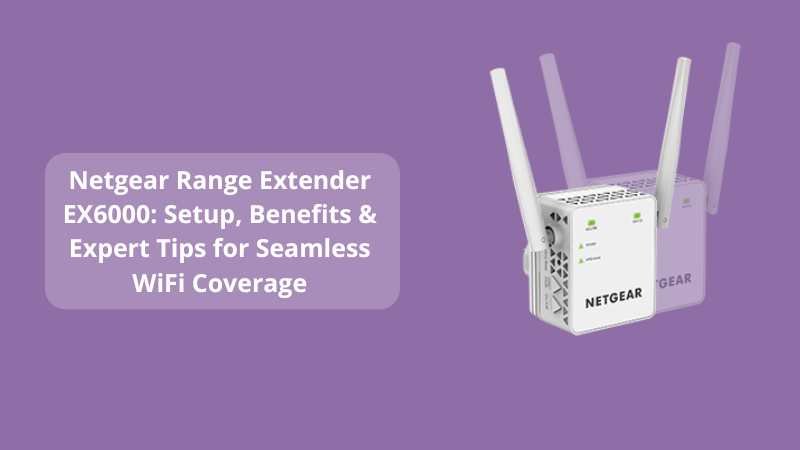
Have you ever been in the middle of a video call, only to freeze mid-sentence because your WiFi signal dropped? Or tried streaming your favorite show, but it kept buffering? Weak signals and dead zones can turn the simplest online tasks into a frustrating experience. That’s where the Netgear Range Extender EX6000 steps in — your ultimate solution for extending your wireless network effortlessly.
In this blog, we’ll walk you through everything you need to know about the EX6000 — from setup instructions to key benefits and some expert tips to get the most out of your WiFi network. And if you’re looking for additional expert guidance on setting up WiFi extenders, you can also check our detailed blog here:
Netgear Range Extender EX6410v2: Your Ultimate Guide to Setup, Benefits, and Troubleshooting
Why Choose the Netgear EX6000?
Think of your home as a city and your router as the main power station. While it works hard to send electricity (WiFi) across the city, some faraway neighborhoods still go dark — that’s your dead zones. The EX6000 acts like a substation, picking up the power and delivering it to those dark corners.
Key highlights of the EX6000 include:
-
Dual-band performance to handle multiple devices without lag.
-
Up to 750Mbps speed for smooth browsing, streaming, and gaming.
-
Compact wall-plug design for easy installation.
-
FastLane Technology for maximizing speed using both WiFi bands.
Step-by-Step Setup Guide for Netgear EX6000
Setting up your EX6000 is much easier than you think — no tech wizardry required.
1. Placement is Key
Before starting, place the extender halfway between your router and the dead zone. Avoid corners, thick walls, or areas near large appliances that can cause signal interference.
2. Connect via WPS (Wi-Fi Protected Setup)
-
Plug the EX6000 into an electrical outlet.
-
Press the WPS button on the extender.
-
Within two minutes, press the WPS button on your router.
-
Once the LED turns solid green, your connection is successful.
3. Manual Setup Using a Browser
If your router doesn’t support WPS:
-
Connect your device to the Netgear_EXT network.
-
Open a browser and go to www.mywifiext.net.
-
Follow the on-screen instructions to link your extender to your home network.
4. Confirm & Test the Signal
Once connected, check the signal strength in your dead zone using your phone or laptop. Adjust placement if needed for optimal coverage.
Top Benefits of the Netgear EX6000
-
Eliminates WiFi Dead Zones – Say goodbye to no-signal areas in your home or office.
-
Supports Multiple Devices – From smart TVs to tablets, all your devices stay connected.
-
Dual-Band Flexibility – Works on both 2.4GHz for wider coverage and 5GHz for faster speeds.
-
Energy-Efficient Design – Consumes less power without compromising performance.
-
Affordable WiFi Upgrade – Cost-effective alternative to replacing your router.
Expert Tips to Maximize EX6000 Performance
“A strong internet connection is like oxygen in today’s digital life — you don’t notice it until it’s gone.”
-
Tip 1: Place your extender at chest height for better signal distribution.
-
Tip 2: Regularly update your extender’s firmware for enhanced security and improved performance.
-
Tip 3: Use the FastLane Mode if you want maximum speed for streaming or gaming.
-
Tip 4: Avoid overcrowding your network with unused devices.
-
Tip 5: Perform a quick speed test after setup to verify improvements.
Common Troubleshooting Steps
Even the best devices need occasional fine-tuning:
-
No Connection? Reset the extender by holding the reset button for 10 seconds and try again.
-
Slow Speed? Check for interference from other wireless devices like cordless phones.
-
LED Indicator Issues? Refer to the LED light guide in the manual for troubleshooting
Final Thoughts
If you’re tired of slow speeds and endless buffering, the Netgear Range Extender EX6000 is your ticket to uninterrupted, high-speed connectivity. It’s compact, easy to set up, and powerful enough to blanket your entire home in strong WiFi.
In our introduction, we asked: Can you eliminate dead zones without replacing your router? The answer is yes — with the EX6000, you can turn those WiFi “black holes” into vibrant, connected spaces.
So why keep struggling with weak signals? Upgrade your home network today, and let every corner of your home feel like it’s right next to the router.
Frequently Asked Questions (FAQ)
Q1: Does the Netgear EX6000 work with any router?
Yes, it’s compatible with almost all standard WiFi routers.
Q2: Can I use multiple EX6000 extenders in the same network?
Yes, but placing them too close can cause signal overlap and slow down performance.
Q3: What’s the coverage range of the EX6000?
It can cover up to 1,200 sq. ft., depending on your home layout and interference levels.
Q4: Is it good for gaming?
Absolutely! Just connect via Ethernet port for the most stable gaming experience.
Q5: Can I name the extended network the same as my main WiFi?
Yes, for seamless roaming, use the same SSID and password.