
Supercharge Your WiFi: The Complete Setup and Performance Guide for Range Extender EX2700
Posted by WifiExtSetup on 29th May 2025
Boosting Your Signal or Boosting Your Frustration?
Have you ever wondered why your internet fades right when you’re about to stream your favorite show or jump on an important video call? Why do some rooms feel like WiFi black holes while others buzz with high-speed connectivity? If these frustrations sound familiar, you’re not alone—and you’re not without a solution. The Netgear Range Extender EX2700 might just be your secret weapon against patchy connections and slow-loading websites.
But here’s the real question: Is it easy to set up? Will it work in your home? And most importantly, is it worth the investment? In this guide, we’ll walk you through everything you need to know about the EX2700, including how to set it up and achieve optimal performance. Let’s take your WiFi from “meh” to magnificent.
What Is the Netgear Range Extender EX2700?
An Everyday Fix for Everyday WiFi Problems
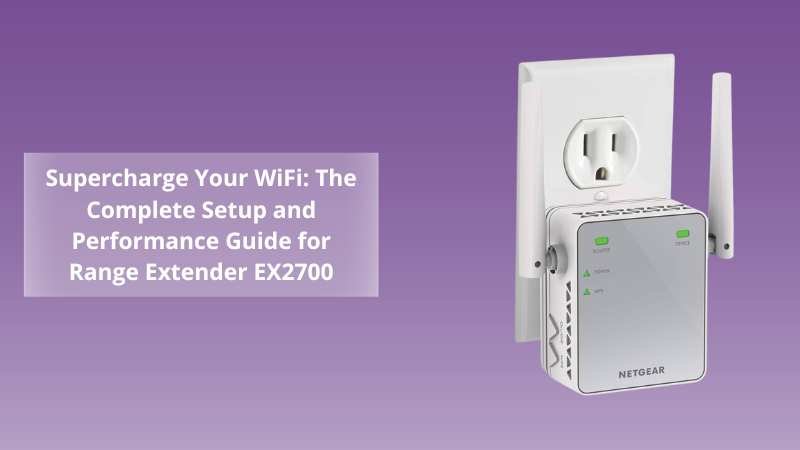
The Netgear EX2700 is a compact, plug-in WiFi range extender that’s designed to amplify and repeat your existing wireless signal, extending coverage to those frustrating dead zones. Whether you’re in a multi-level home, a small apartment with concrete walls, or an office that needs signal in every corner, this little device packs a punch.
-
Dual Antennas for Stronger Coverage
-
300 Mbps Speed on 2.4 GHz Band
-
Universal Compatibility with Any Router
-
Ethernet Port for Wired Devices
It’s not just a gadget—it’s peace of mind for every corner of your home.
“Having strong WiFi everywhere shouldn’t be a luxury. The EX2700 makes it possible without breaking the bank.”
How to Set Up the Range Extender EX2700 in Minutes
The Quick & Easy Setup Guide
You don’t need to be a tech wizard to get your EX2700 up and running. Netgear has made it incredibly user-friendly. Here’s how to do it:
Option 1: WPS Method (Simplest Way)
-
Plug the EX2700 into a power outlet midway between your router and the area with poor WiFi.
-
Wait for the power LED to turn solid green.
-
Press the WPS button on the router.
-
Within two minutes, press the WPS button on the EX2700.
-
Look for the Link Status LED to turn solid green—you’re connected!
Note: If the LED turns amber or red, move the extender closer to the router.
Option 2: Web Browser Setup
-
Connect to the NETGEAR_EXT WiFi network.
-
Open a browser and visit http://www.mywifiext.net
-
Follow the on-screen prompts to:
-
Choose your existing network.
-
Enter your WiFi password.
-
Customize your extender network name (optional).
-
After the setup, reconnect your devices to the new extended network—and voilà!
Tip: Bookmark https://www.wifi-extsetup.com for expert support, updates, and more setup help anytime.
Optimizing Your EX2700 for Maximum Performance
Location, Location, Location
Just like real estate, where you place your EX2700 matters. Avoid corners, thick walls, or hidden outlets. Instead:
-
Place it halfway between your router and the dead zone.
-
Keep it in an open area, preferably elevated.
-
Avoid placing it behind TVs, furniture, or inside cabinets.
Use the Ethernet Port Wisely
The EX2700 features an Ethernet port—perfect for connecting smart TVs, gaming consoles, or desktops directly for better speed and stability.
Troubleshooting: When Things Don’t Go as Planned
Common Issues and Smart Fixes
Issue 1: Can’t connect to NETGEAR_EXT network
-
Restart the extender.
-
Use another device to connect.
-
Try resetting it using the reset button for 10 seconds.
Issue 2: WPS setup failed
-
Double-check that your router supports WPS.
-
Try the browser setup instead.
Issue 3: Slow internet through the extender
-
Reposition closer to your router.
-
Reboot both the router and the extender.
-
Make sure your main router isn’t overloaded with too many devices.
If problems persist, reach out to our support or check the helpful resources in our blog section.
Why Choose EX2700 Over Other Extenders?
Budget-Friendly Reliability
Compared to newer dual-band or tri-band extenders, the EX2700 is a cost-effective and efficient solution for light-to-moderate users. It’s perfect for:
-
Small homes and apartments
-
Secondary floors or basements
-
Users with basic browsing and streaming needs
“It’s not about having the flashiest device. It’s about the one that gets the job done—and the EX2700 delivers.”
Internal Resource Spotlight
If you found this guide helpful, don’t miss our detailed article:
🔗 Supercharge Your Signal: The Ultimate Guide to Setting Up the Range Extender EX6000
That article is your next step if you’re considering more power and dual-band coverage!
Conclusion: Should You Get the Range Extender EX2700?
Let’s go back to the questions we started with. Tired of WiFi that quits when you need it most? Wondering if a simple plug-in device can solve it? The answer is yes.
The Netgear EX2700 is more than capable of filling the gaps in your current setup. It’s user-friendly, reliable, and gives you the freedom to use your internet wherever you want in your space.
Need more help? Explore step-by-step guidance, real-time chat support, and blogs on www.wifi-extsetup.com. We’re here to keep you connected.
FAQs About Range Extender EX2700
Q1. Can the EX2700 work with any router?
Yes, the EX2700 is universally compatible with any standard WiFi router.
Q2. Does it support 5 GHz networks?
No, the EX2700 only supports 2.4GHz WiFi. If you need 5 GHz support, consider upgrading to a dual-band extender like the EX6000 or EAX15.
Q3. How far can the EX2700 extend my WiFi?
Typically up to 1,000 square feet, depending on wall thickness and signal interference.
Q4. How do I reset the EX2700 to factory settings?
Hold the reset button for 10 seconds using a pin until the LED blinks.
Q5. Is there an app to manage the EX2700?
No dedicated app, but all setup and monitoring can be done through http://www.mywifiext.net.