
Netgear Range Extender EXS18: Setup Guide, Benefits & Expert Tips
Posted by WifiExtSetup on 02th September 2025
Is your WiFi slowing down in the far corners of your home? Do you often struggle with weak signals in your bedroom, office, or backyard? You’re not alone. Dead zones are one of the most common internet frustrations today. The good news? Devices like the Netgear Range Extender EXS18 are designed to solve exactly that problem—ensuring smooth, uninterrupted connectivity wherever you need it most.
In this blog, we’ll explore how to set up the EXS18, its benefits, troubleshooting tips, and why it’s worth adding to your home or office setup.
What is the Netgear Range Extender EXS18?
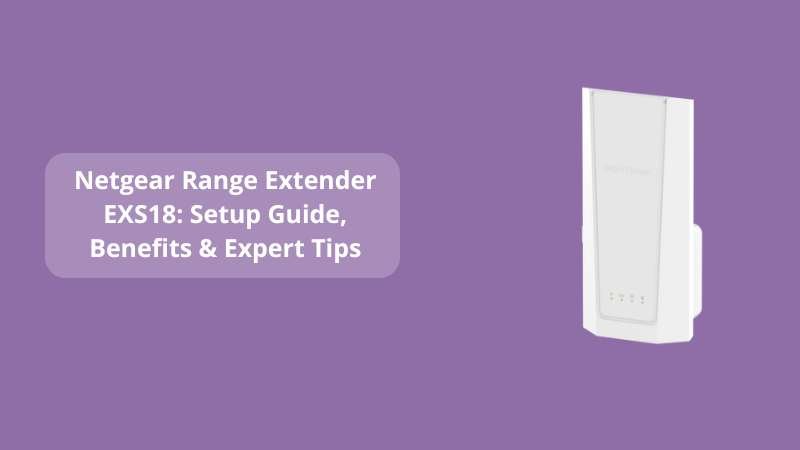
The Netgear EXS18 is a compact yet powerful WiFi range extender built to strengthen your existing network. Think of it as a bridge—it grabs the WiFi signals from your main router and then amplifies them to reach places your router alone cannot.
Key highlights of the EXS18 include:
-
Dual-band WiFi performance
-
Easy plug-in design for flexible placement
-
WPS one-touch setup option
-
Compatibility with most routers and gateways
-
Stable connection for streaming, gaming, and work
In short, it’s like giving your WiFi a much-needed megaphone!
Step-by-Step Setup Guide for Netgear EXS18
Setting up your EXS18 may sound complicated, but it’s actually a straightforward process. Here’s how you can do it:
1. Unbox and Plug In
-
Take the EXS18 out of the box.
-
Plug it into a power socket near your router.
-
Wait until the Power LED lights up green.
2. Connect via WPS (Easy Option)
-
Press the WPS button on your router.
-
Within 2 minutes, press the WPS button on your EXS18.
-
The LEDs will confirm a successful connection.
This method is the fastest, especially if you’re not tech-savvy.
3. Manual Setup (Web Browser Method)
If WPS is not available on your router:
-
Connect your device to the extender’s default WiFi (Netgear_EXT).
-
Open a browser and type: mywifiext.net
-
Follow the on-screen instructions to connect the extender to your router.
4. Reposition for Best Performance
-
Once connected, unplug the extender and place it halfway between your router and the area with weak WiFi.
-
Avoid placing it near microwaves, thick walls, or cordless phones.
“Think of WiFi like light from a lamp. The closer and clearer the path, the brighter the glow.”
Benefits of Using the Netgear EXS18
Why should you consider this extender over others? Let’s look at its biggest advantages:
1. Eliminate Dead Zones
Say goodbye to frustrating weak spots. The EXS18 ensures strong WiFi in every room.
2. Support for Multiple Devices
Whether it’s smartphones, laptops, smart TVs, or gaming consoles, the extender can handle them all without slowing down.
3. Easy Plug-and-Play Design
No messy installations. Just plug it in, set it up once, and enjoy seamless coverage.
4. Reliable Streaming and Gaming
If you love binge-watching or competitive gaming, you’ll appreciate the stable, lag-free connection.
Troubleshooting Common Issues
Even the best devices may face hiccups. Here are quick fixes:
-
Issue: Extender not connecting
→ Reset the EXS18 by holding the reset button for 10 seconds, then try again. -
Issue: Slow speed after setup
→ Move the extender closer to the router for better performance. -
Issue: Can’t access mywifiext.net
→ Ensure you are connected to the extender’s WiFi and try again.
Expert Tips for Best Results
-
Place your router in a central spot, and the extender halfway to the dead zone.
-
Keep firmware updated for better security and performance.
-
For larger homes, consider pairing multiple extenders.
-
Use the same SSID (network name) for smooth roaming.
For a detailed guide on extender setup and performance optimization, check out this resource:
👉Netgear Range Extender WN2000RPTv2: Setup, Features & Complete Guide
Conclusion: Is the Netgear EXS18 Worth It?
So, is the Netgear Range Extender EXS18 the right choice for you? If you’re tired of battling WiFi dead zones, the answer is a resounding YES. It’s affordable, easy to install, and offers reliable coverage across your space.
The questions we started with—“Why is my WiFi weak? How do I fix it?”—find their solution here. With the EXS18, you can finally enjoy uninterrupted browsing, gaming, and streaming wherever you are in your home or office.
If you want smoother connectivity without investing in a costly new router, the Netgear EXS18 is the smart upgrade you’ve been waiting for.
FAQs about Netgear Range Extender EXS18
Q1. Can I use the EXS18 with any router?
Yes, it’s compatible with most routers and ISPs.
Q2. Does it reduce internet speed?
No, when placed correctly, it improves coverage without reducing speed.
Q3. How do I know if it’s working?
The LED indicators will show connection strength. Also, you’ll notice stronger WiFi in previously weak spots.
Q4. Can I use more than one extender?
Yes, you can install multiple extenders if your space is too large for one.
Q5. Do I need to update it regularly?
Yes, occasional firmware updates from Netgear ensure optimal security and performance.