
Netgear Range Extender WN2000RPTv2: Setup, Features & Complete Guide
Posted by WifiExtSetup on 29th August 2025
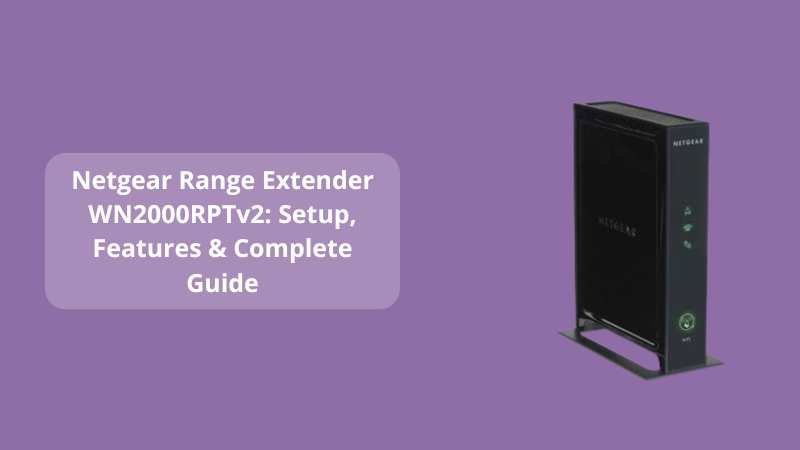
Have you ever wondered why your WiFi signal drops the moment you step into another room? Or why do your streaming, gaming, or work calls start buffering when you move a little away from the router? Weak signals and dead zones can be frustrating for anyone. This is where the Netgear Range Extender WN2000RPTv2 comes into play. But is it really the solution for your WiFi struggles? How does it work, and most importantly, how do you set it up easily? Let’s dive in.
What is the Netgear Range Extender WN2000RPTv2?
The Netgear WN2000RPTv2 is a WiFi range extender designed to eliminate dead zones and extend your existing WiFi coverage. Think of it as a bridge—connecting areas of your home or office that your main router can’t reach.
It’s compact, reliable, and supports multiple devices simultaneously. Whether you’re streaming Netflix in your bedroom, attending online classes in your study, or working remotely from the balcony, this extender ensures your connection stays strong.
👉 Simply put, it helps your WiFi travel farther without losing speed.
Key Features of Netgear WN2000RPTv2
Before diving into the setup, let’s explore the main highlights that make this device a popular choice:
-
Extended WiFi Coverage – Covers dead zones and weak spots.
-
Ethernet Ports – Comes with multiple ports to connect wired devices, such as gaming consoles or smart TVs.
-
Universal Compatibility – Works with almost all standard routers.
-
Push ‘N’ Connect – WPS button for one-touch easy connection.
-
Smart LED Indicators – Helps you find the best spot for placement.
-
Reliable Performance – Ensures smoother streaming and browsing.
💡 “Strong WiFi is like electricity—once you experience it, you can’t live without it.”
How to Set Up Netgear Range Extender WN2000RPTv2
The setup process is simple and user-friendly. You can do it in two ways: the WPS method or the Web Browser method.
1. WPS Setup Method (Quickest Way)
-
Plug the extender into a power outlet.
-
Press the WPS button on your router.
-
Within 2 minutes, press the WPS button on your extender.
-
Wait for the green light—this indicates a successful connection.
-
Move the extender to a location where you face weak signals.
That’s it! Your extended WiFi is ready.
2. Web Browser Setup Method (Manual Way)
If your router doesn’t support WPS, follow these steps:
-
Plug in your WN2000RPTv2 and power it on.
-
Connect your device (laptop/phone) to the extender’s default WiFi network.
-
Open a browser and go to www.mywifiext.net.
-
Create a login (first-time users).
-
Select your existing WiFi network and enter the password.
-
Confirm and save settings.
👉 Pro Tip: Place the extender midway between your router and the dead zone for the best results.
Best Placement for Maximum Performance
Did you know that placing your extender incorrectly can reduce its effectiveness by 50%?
Here’s the golden rule:
-
Don’t place it too far from the router.
-
Avoid placing it near microwaves, cordless phones, or thick walls.
-
Use the LED indicators on the device to find the sweet spot.
Imagine your extender as a relay runner—it needs to stay close enough to the router to receive strong signals, and far enough to pass them into weak areas.
Troubleshooting Tips for Netgear WN2000RPTv2
Even with the easiest setup, sometimes issues may arise. Here’s how to fix them:
-
No Connection? Restart both the router and extender.
-
Forgot Login Details? Reset the extender to factory settings by pressing the reset button for 10 seconds.
-
Slow Speed? Ensure the extender isn’t too far from the router.
-
Can’t access mywifiext.net? Use the default IP address: 192.168.1.250.
💡 Quick Fix: Keep your extender firmware updated from the Netgear support website.
Why Choose Netgear WN2000RPTv2 Over Others?
You might be wondering—why this model when there are so many extenders out there? Here’s why:
-
Budget-friendly yet powerful.
-
Offers both wireless and wired connections.
-
Simple enough for beginners, yet reliable for advanced users.
If you want to explore a newer model with advanced features, check out this detailed guide: Netgear Range Extender EX2700: Setup Guide, Benefits & FAQs
Conclusion
So, is the Netgear Range Extender WN2000RPTv2 the right choice for you? If you’re tired of weak signals, constant buffering, and dead zones, then yes—it’s a reliable and budget-friendly solution.
We began with a question: Can one small device fix big WiFi issues? Now you know the answer—absolutely. Whether you choose the quick WPS setup or manual browser method, this extender ensures your devices stay connected wherever you are in your home.
And if you want an even stronger, future-ready option, don’t forget to explore the Range Extender EX2700 for seamless WiFi performance.
✨ After all, a stronger connection doesn’t just improve WiFi—it improves your lifestyle.
FAQs: Netgear Range Extender WN2000RPTv2
Q1. How do I know if my extender is working?
Check the LED lights. A solid green or amber indicates a stable connection.
Q2. Can I connect wired devices to WN2000RPTv2?
Yes! Use its Ethernet ports to connect gaming consoles, PCs, or TVs.
Q3. What should I do if I forget my extender password?
Reset it using the reset button on the device, then reconfigure through mywifiext.net.
Q4. Does WN2000RPTv2 support dual-band WiFi?
No, it supports single-band (2.4GHz). For dual-band, consider Netgear AX1500.
Q5. How far can the extender cover?
Coverage depends on your router and environment, but generally up to 1200 sq. ft.